 Revive
Colorize photos online,
by the folderful.
Revive is the way to colorize photos online at scale with no manual upload step. It's a Google Drive add-on: point at a folder, click Colorize, and hundreds of black-and-white images come back in full color, saved right next to your originals. Pay per photo. No subscription.
 BeforeRevived
A photo colorizer built for volume.
Most colorizers make you upload one image at a time to a stranger's server. Revive colorizes photos where they already live — in your Drive.
Batch by the folder
Pick one photo, one folder, or a whole tree of them. Revive queues every image automatically — 1, 100, or 10,000 — and keeps your sub-folder structure intact.
Only the files you pick
Revive only ever accesses the photos you select — a narrow drive.file scope, nothing else in your Drive. Color copies land right beside your originals, which are never modified.
Pay per photo
1 image = 1 colorized photo. Buy a pack, spend it whenever. No subscription, credits never expire, and any failed job is auto-refunded.
Fast, quality output
Roughly 50–100 ms per photo — about 1,000 images in a minute. Color copies land in the same folder as filename-color.jpg, ready to download.
Grey becomes gold.
Portraits, streets, gardens, keepsakes. Scroll and watch the colour come back, the same way it does in your Drive.
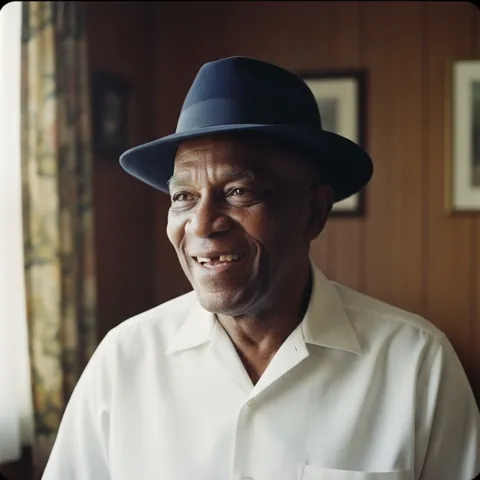
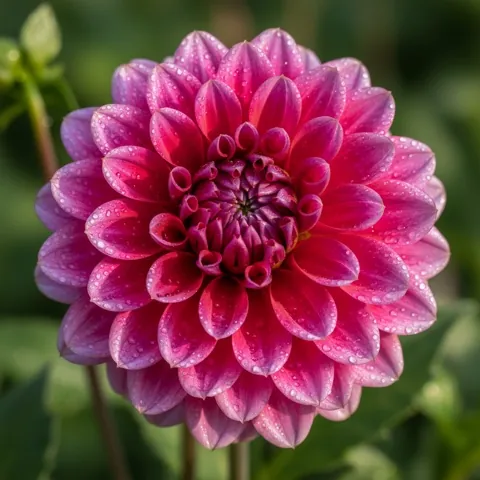
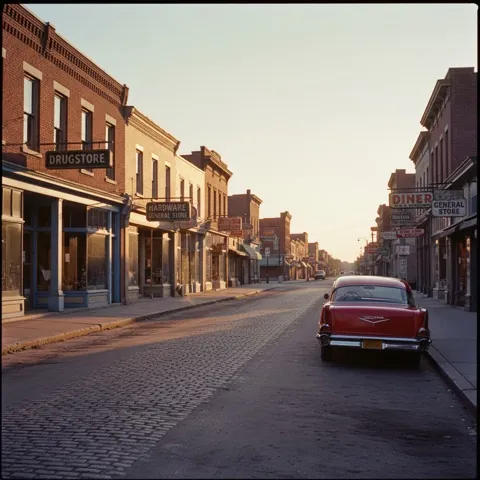






Colorize photos online in three clicks.
No downloads, no new accounts, no manual uploads. Revive runs in the Google Drive side panel.
Open the side panel
Install Revive from the Google Workspace Marketplace™, then open the side panel from any photo or folder in Drive.
Pick files or a folder
Click a single photo, hold Cmd/Ctrl to multi-select, or point at a whole folder. Revive expands it and shows the count.
Click Colorize
Confirm and hit Colorize. Color copies save into the same folder as filename-color.jpg. Originals stay untouched.
Pay per photo. No subscription.
1 image = 1 colorized photo. The bigger the pack, the lower the per-photo cost — from 9¢ down to 5¢ with custom volume. Savings shown against a 10¢ list rate.
Colorizing photos, answered.
How do I colorize photos online with Revive?
Install the Revive add-on from the Google Workspace™ Marketplace, open the side panel in Google Drive, and select the black-and-white photos or a folder you want to colorize. Click Colorize and Revive processes them in place. A colorized copy of each image is saved into the same folder, named filename-color.jpg, and your originals are never modified.
What happens to my photos when I colorize them?
Revive reads the photos you select from your Drive, colorizes them, and writes the color copies back into the same folder, named filename-color.jpg. Your originals are never modified, and Revive can only access the files you explicitly pick (narrow drive.file scope).
Can I colorize hundreds or thousands of photos at once?
Yes. Revive is folder-aware and built for batch work. Point it at a single photo, a folder, or a whole tree of sub-folders — it queues every image automatically, whether that's 1, 100, or 10,000. Sub-folder structure is preserved, and colorizing runs at roughly 50–100 ms per photo, so about 1,000 images finish in around a minute.
What does it cost to colorize a photo?
Revive is pay-per-image with no subscription. 1 image equals 1 colorized photo. Packs are Basic $9 for 100 images ($0.09 each), Standard $29 for 400 ($0.073), Premium $59 for 900 ($0.066), and Enterprise $129 for 2,000 ($0.065). Custom volume above 2,000 images goes as low as 5¢ per image. Credits never expire and any failed job is automatically refunded.
Which file types can I colorize, and what do I get back?
Revive accepts JPG, PNG, HEIC, TIFF, and WebP images as input. Each colorized result is saved as a color JPEG in the same folder as the original. You can try it first with 3 free images, no credit card required.
Colorize three of your photos free.
Install from the Workspace Marketplace, pick three black-and-white photos in Drive, and click Colorize. Your first three Revives are on us. No card. No commitment.